From TIMEWELL
This is Hamamoto from TIMEWELL Inc.
The First Thing to Do When You Get a New MacBook
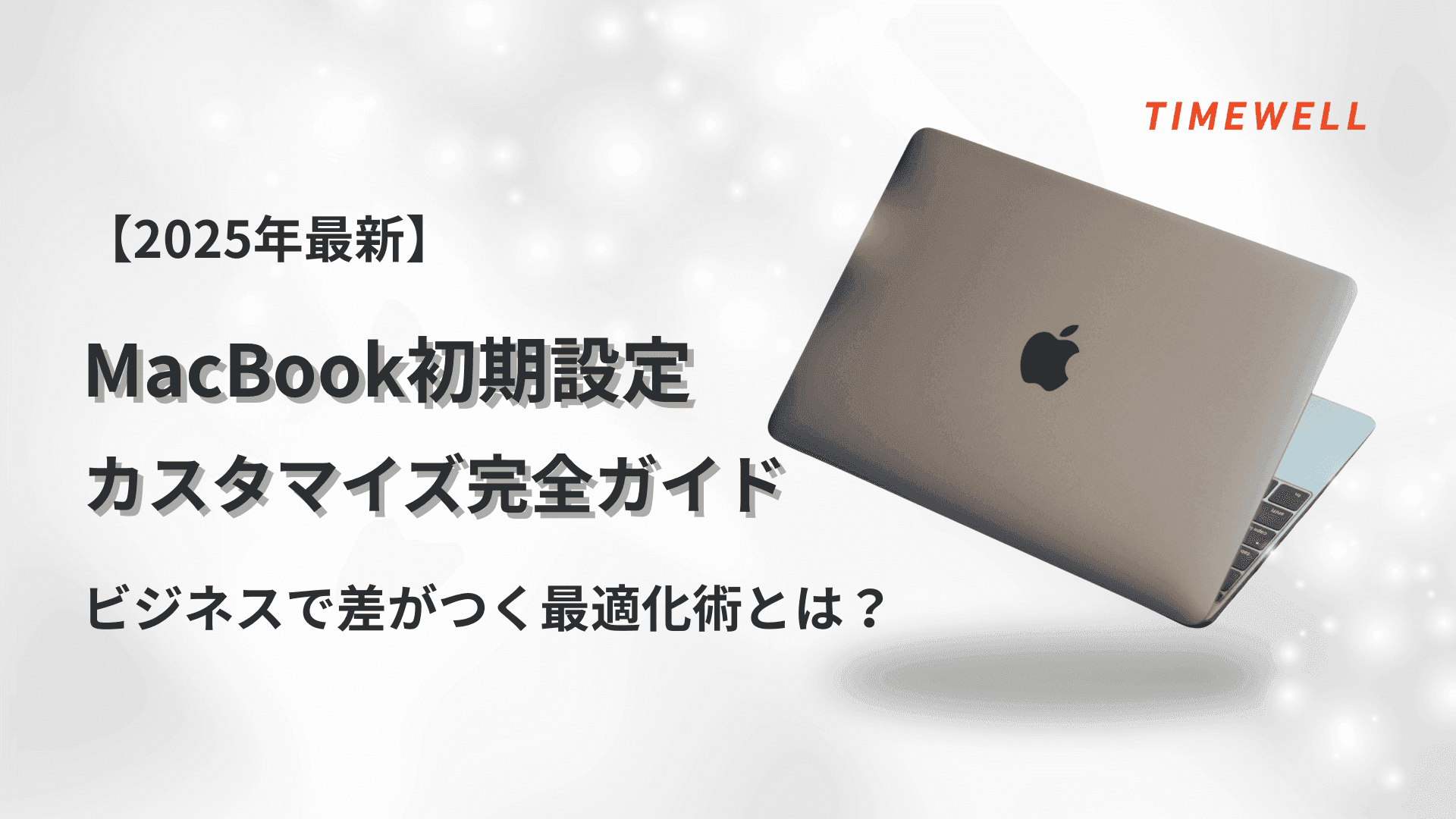
When you get a new MacBook, the most important first step is an accurate and efficient setup. To get the most out of your machine's performance and use it without stress in your daily work and personal tasks, customization during the initial setup is essential. This article explains in detail — with actual demonstration examples, in a way that beginners can follow and professionals will find worthwhile — everything from the initial setup of a MacBook Pro through system-wide customization to installing productivity-enhancing applications. The setup process covers: language and region selection, Apple ID registration, Touch ID and Apple Pay configuration, and other items you need to handle in the very first steps, as well as checking system information, managing storage, customizing the desktop and Dock, and installing apps like Chrome, Zoom, and LINE. Use this guide as a first step toward getting the most out of your MacBook — learn tips for setting up an efficient work environment and applying them to improve your productivity in business.
- Easy for Anyone! Initial Setup Steps to Complete Right After Unboxing Your MacBook [Apple ID, Touch ID, Wi-Fi]
- Dramatically Change How Efficiently You Work! Thorough Finder, Dock, and Menu Bar Customization
- Apps and Settings That Make Work Easier! Must-Have Mac Apps and Configurations [Chrome, Zoom, LINE]
- Summary
Looking for AI training and consulting?
Learn about WARP training programs and consulting services in our materials.
Easy for Anyone! Initial Setup Steps to Complete Right After Unboxing Your MacBook [Apple ID, Touch ID, Wi-Fi]
The initial setup of a MacBook is one of the most important steps when you first receive a new device. When you first boot a Mac, the first screen asks you to set your language and your country or region. Selecting "English" and your country from the options on screen automatically applies settings optimized for your local environment. Next, you will see the option to "Transfer Information to This Mac." While it is possible to migrate data from an older computer here, many users prefer a clean, fresh setup. In actual demonstrations, the approach recommended is to keep the initial setup straightforward — simply pressing Continue to proceed as a new setup.
The core of the initial setup is the accessibility and Wi-Fi configuration. Since accessibility settings can be changed later as needed, you can select "Not Now" here and proceed to the Wi-Fi network setup. Connecting to Wi-Fi immediately enables data transfer and authentication over the internet, allowing you to configure various services in your actual environment. A key consideration here is optimizing your connection for your circumstances. Even in environments with unstable networks such as an office, there are plenty of options available to proceed with setup smoothly.
Account Creation: Username, Name, and Icon
During account creation, you can enter your username and full name and set an icon of your choice. In one demonstration example, a user selected and saved a unicorn icon — a way to make yourself easily identifiable in the system and express your personality. When setting a password, careful input is required to ensure security, with a note about using the Shift key: the Shift key is essential for capitalizing the first letter of a word, and the demonstration also shows how to switch to Caps Lock mode when needed.
For Apple ID registration, you choose between using an existing account or creating a new one. The process covers agreeing to the terms of use associated with your Apple ID, entering a verification code, and following the steps to ensure a smooth login. For example, the demonstration explains in detail how to obtain a verification code from another device signed in with your Apple ID. Once Apple ID setup is complete, you can use iCloud and all services across the Apple ecosystem, enabling centralized data management for all subsequent setup.
Touch ID setup is also extremely important, both for security and convenience. Simply placing a finger on the fingerprint authentication button in the upper right lets you start up and unlock your computer. The demonstration shows the actual steps of placing your finger and explains how authentication works, emphasizing how convenient it is for business users in daily use. Setup screens for Apple Pay, iCloud, and other Apple services are also presented, with clear explanations of the key considerations for deciding which items to turn on or off.
Key Initial Setup Points, Summarized
Here are the most important initial setup points in bullet form:
- System optimization through language and country/region selection
- Deciding on the data transfer option (new setup vs. migration)
- Initial Wi-Fi and accessibility configuration
- Creating a user account with icon and password
- Apple ID registration, verification code entry, and agreeing to terms of use
- Touch ID configuration for security and convenience
Configuring Apple Services Including iCloud and Apple Pay
- Initial configuration choices for Apple services including iCloud and Apple Pay
With each step of this process proceeding smoothly, MacBook's initial setup is complete, laying the groundwork for efficient system customization and productive use afterward. In practice, the process flows without interruption by pressing buttons like "Continue" and "Save" on screen as appropriate — even first-time users can complete the setup with confidence. As a whole, the initial setup is not just a list of steps to get through — it is the foundation for a comfortable environment in all the work and daily use that follows, so it is worth taking the time to understand each step as you go.
Dramatically Change How Efficiently You Work! Thorough Finder, Dock, and Menu Bar Customization
After completing the initial setup, you move on to fine-tuning the Mac's own functions and display options. First, clicking the Apple logo reveals a screen showing system information. Here you can check your Mac's specifications — the chip installed, memory capacity, serial number, OS version, and other basic system information. When using a Mac for work, understanding your machine's capabilities is very important. Checking available storage is also essential when saving important files or using demanding applications. When storage runs low, system performance drops significantly — it's a good idea to check regularly and consider deleting unnecessary data or using an external SSD.
Finder Settings: Customizing the Sidebar
In Finder settings, you can freely customize the items shown in the left sidebar to make it easier to organize the data you manage. Items covered here include Desktop, Documents, Downloads, and connected external drives. In the demonstration, the default state included many items such as Recents, AirDrop, and Applications — the recommendation is to pare these down to only what you need for a clean, simple layout. The demonstration shows how to uncheck and remove unnecessary items to suit your work style, improving overall simplicity and intuitiveness.
In System Settings under "Desktop & Dock," you can also freely change the Dock's position and display method — whether it appears at the bottom, left, or right of the screen, whether it magnifies on hover, and more. Adjusting icon size and auto-hide/show settings makes effective use of screen space and lets you quickly identify and launch apps you're working with. For instance, having quick access from an always-visible Dock to key tools like Chrome, Zoom, and LINE directly translates to improved work efficiency for business users. In "Control Center" within System Settings, you can also customize the display of Wi-Fi, Bluetooth, AirDrop, Focus mode, screen mirroring, and other items, letting you quickly check connection status and notifications.
For the menu bar, customizing the various icons in the upper right is also essential. For example, displaying battery level as a percentage, and adjusting the clock display (showing the day of the week or AM/PM), makes it easier to track your daily schedule and handle urgent situations. These settings can be managed intuitively within Apple's System Settings, with fine-grained customization including turning individual items on or off and changing their position. The demonstration covers adding and removing Bluetooth and Wi-Fi icons, hiding unnecessary items, and emphasizes both improved readability and keeping the overall work environment clean.
Finder Window Display: The Backbone of Information Organization at Work
Finder window display is also central to organizing information at work. Switching between file view options — list view, icon view, column view, gallery view — based on your needs enables quick access to the information you need and improves data management efficiency. Configuring files to always display extensions, showing the path bar for quick navigation to previous folders — these also play an important role in improving work efficiency. Detailed steps are explained for using the Finder settings menu at the top of the screen to change all file extensions, adjust sort order, and use categorization for data organization — highly useful information for anyone who handles large numbers of files at work.
Customizing the overall system — Dock, Finder, menu bar — after completing the initial setup, in a way tailored to your individual work environment, is important. Behind each setting item is a rational approach for keeping your PC comfortable to use at all times, building a system that responds to the diverse needs that accumulate through daily use. The result is that building an environment best suited to your work style produces a dramatic improvement in efficiency and productivity.
Apps and Settings That Make Work Easier! Must-Have Mac Apps and Configurations [Chrome, Zoom, LINE]
Once Mac's initial setup and system customization are complete, the next step is installing the essential applications for work and daily life. Beyond using Safari as the default web browser, installing Chrome as a dedicated work tool is very important. To install Chrome, first search for "Chrome download" in Safari or another browser. You will be prompted to allow a download from the official site that appears, and once the download is complete, you run the installer saved in your Downloads folder and move the Chrome icon to Launchpad or the Dock. Because this process involves visual drag-and-drop operations, it is easy for first-time users to follow. When you first launch Chrome, a dialog appears prompting you to set it as the default browser, and it is recommended to discard the installer afterward — this also builds good habits for keeping unnecessary files out of your system.
Zoom Is Essential for Today's Business Environment
Next, in a modern business environment where online meetings and web conferences are frequent, installing Zoom is a must. As with Chrome, the steps involve visiting Zoom's official website and downloading the installer for Apple Silicon. After downloading, running the installer and selecting "Install for me only" sets up the Zoom app on your Mac and prepares your environment for business meetings. A security confirmation dialog appears during this process, and the installation completes normally when you click "Continue" or "Allow." The demonstration shows the complete workflow — download, running the installer from the Downloads folder, and placing it in Launchpad and the Dock — including an example of the Zoom icon being pinned to the left side of the Dock.
LINE, which is used by many companies as a communication tool, can also be easily installed via the App Store. Open the App Store, type "LINE" in the search field, and if you already have an account linked to your smartphone, it downloads automatically from the cloud. This allows users to easily set up LINE and centrally manage both business communications and personal messages. Similarly, Microsoft Excel, Word, Slack, and other business tools are also recommended for download from the App Store, and each app is automatically placed in Launchpad — designed so that daily task management can proceed more efficiently.
Alongside installing applications, cleaning up unnecessary icons is also important. When frequently used icons and rarely used apps are mixed together in the Dock, the visual clutter negatively impacts work efficiency — right-clicking (or two-finger tapping) to remove or hide items is recommended. For example, removing apps you rarely use — Contacts, FaceTime, Mail, Messages, TV, Music — from the Dock and keeping only the minimum necessary icons is effective. This ensures you always have quick access to the apps you are currently working with, maintaining a smooth work environment without interruption.
Improving Overall System Efficiency
To further improve overall system efficiency, configure trackpad settings and change the default screenshot save location. For example, the trackpad's right-click can be configured as a two-finger tap or a click in a specified corner, and reversing scroll direction or enabling zoom gestures through intuitive gestures improves work efficiency. If the default screenshot save location is the Desktop, it is recommended to create a dedicated folder (for example, a "Screenshots" folder) in advance and change the save location — this reduces the effort of organizing screenshots later and streamlines file management.
Installing essential tools like Chrome, Zoom, and LINE, combined with system customization, is important work that is the key to productivity for busy professionals. Through a series of operations — downloading, installing, placing, and cleaning up unnecessary icons — users can build an optimal work environment tailored to their own needs. The result is smoother handling of daily work, communication, and online meetings — leading to a noticeable improvement in overall work efficiency.
This article has provided a detailed explanation — with specific operational steps and demonstration examples — of everything from MacBook's initial setup through system-wide customization to installing the tools needed to improve business productivity. First, thoroughly completing the initial setup — language settings, region selection, Apple ID registration, and Touch ID configuration — puts your Mac's basic operation and security on a solid footing. Next, customizing Finder, Dock, and menu bar settings builds an optimal personal work environment, enabling efficient data organization and app launching. And through installing essential apps like Chrome, Zoom, and LINE, and adjusting trackpad and screenshot settings, the various tools needed in business are smoothly integrated and overall work efficiency improves dramatically.
Make the Most of Your MacBook in Business
When you put your MacBook to work in business going forward, use the settings and customization methods introduced in this article as a reference to build the optimal environment for your particular way of working. Initial setup and customization are important steps that, once done, have a lasting impact on the work that follows. We hope this also serves as a foundation for staying responsive to the latest updates and new features, and maintaining a comfortable work environment at all times.
Reference: https://www.youtube.com/watch?v=FMUcqg3dRXw
Related Articles
- The Reality of a Working Mother Returning from Two Maternity Leaves — And How Her Work Philosophy Changed | TIMEWELL
- Before Taking Paternity Leave (Part 2): Three Absolute Must-Dos for Taking Leave During a Busy Season
- A First-Class Architect Who Stays Close to the Job Site — Finding My Own Path as the Fifth-Generation Leader of a Construction Company