Hello, this is Ryuta Hamamoto from TIMEWELL.
As I wrote in Part 1 on 30 September, the entry points for intrusions center on vulnerabilities in equipment visible from outside, and on weak identity and authentication. Much of the work of protecting internal systems is not buying new products. It is reviewing the settings of services you already use: identity management, administrator privileges and links to outside apps.
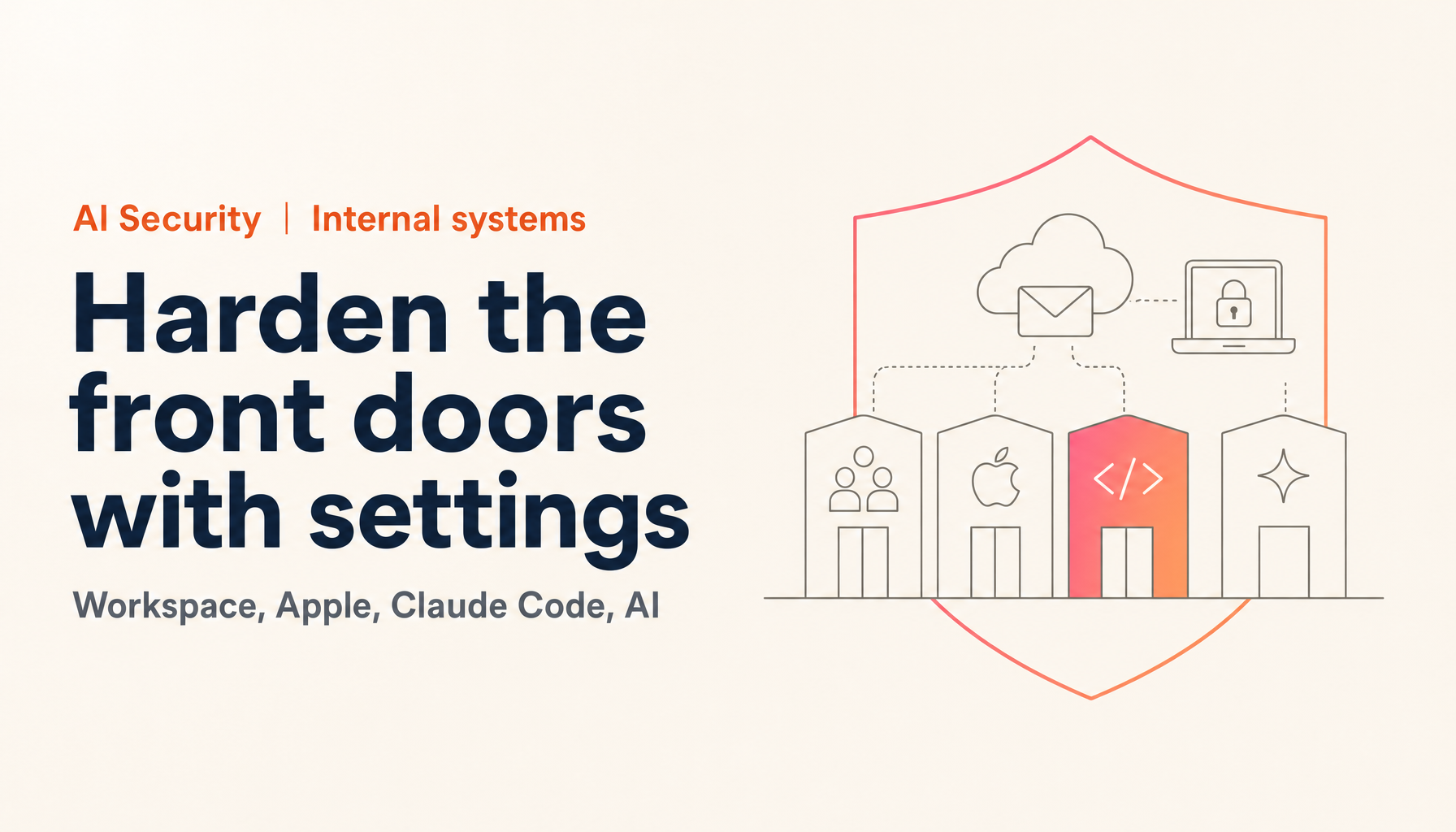
This article takes four that many companies use: Google Workspace, Apple Business, Claude Code, and AI agents that run in the browser. Drawing on each one's official documentation and OWASP, it sets out what to review and in what order. It is not a complete guide to every screen. It describes the thinking behind the settings and their priority. The figures and specifications are as confirmed on 20 October 2026.
Google Workspace: start with administrator accounts
Google publishes a security checklist for medium and large businesses.1 It has many items. If I had to put them in order, I would go like this.
1. Separate administrator accounts.
Google's best practices for administrator accounts recommend having several super administrator accounts, handled by different people, so that if one account is lost another super administrator can keep important work going. On top of that, each super administrator should have two accounts: one for administration and an ordinary one for day-to-day work, for example admin-maria@example.com and maria@example.com. A super administrator signs in only when needed and signs out when done. Staying signed in all the time raises the risk of falling victim to phishing.2
Delegate routine administration to ordinary accounts with limited administrator roles, giving only the least privilege needed. For example, allow creating users and resetting passwords but not deleting users.2
2. Require 2-step verification and use phishing-resistant methods.
The checklist lists requiring 2-step verification from users and, at least for important accounts such as administrators, requiring physical security keys that resist phishing.1 The administrator page calls security keys "the most secure form of 2SV" and recommends registering more than one backup key and storing them somewhere safe.2 Also prepare recovery phone numbers and email addresses, and backup codes generated and printed in advance.
3. Make third-party app access approval-based.
Find out which apps can reach core services such as Gmail and Drive, and allow only the ones you have approved. Block less secure apps that do not use current standards such as OAuth. Building an allowlist of trusted apps is also listed.1 It is worth checking once whether apps that employees connected on their own have become an entrance to your company's mail and files.
4. Make sharing defaults stricter.
In Drive, turn off sharing outside the organization or control it with trust rules. Prohibit public web sharing and set the default general access to "Restricted." Show users a warning when they share outside the domain. Sharing files that contain sensitive data, such as passport numbers, outside the domain can be blocked or warned about with DLP.1
5. Email authentication and control of auto-forwarding.
In Gmail, authenticate the sender with SPF and DKIM and define the handling of unauthenticated mail with DMARC. Disable automatic forwarding, and allow IMAP and POP only for users who need them.1 I cover email authentication in more detail in DKIM Replay Attacks: Six Email DNS Settings Domain Owners Should Review.
6. Cut off departing employees' access reliably.
Revoke access to organizational data at departure. Stopping bulk data downloads through Google Takeout, when compromise is suspected or for departed employees, is also on the checklist.1
7. Put monitoring in place.
Use activity reports and alerts to regularly check account status, administrator privileges and 2-step verification enrollment. Set administrator email alerts to catch suspicious sign-ins and administrator changes. The audit log shows who made an administrative change, when, and from which IP address.12
Context-aware access, which controls access by conditions such as IP address and device state, is also in the checklist.1 Which plans can use it is subject to conditions, so check your own contract before considering it.
Apple Business: bring devices and the company's Apple Accounts under management
Apple's official documentation points to the Apple Business portal as the way in for organizations. The portal includes a built-in device management service that is provided to organizations at no cost. It covers iPhone, iPad, Mac, Apple TV and Apple Vision Pro.3
1. Bring devices under management from purchase.
Apple devices that an organization has bought can be enrolled in a device management service automatically, before the user receives them. They must come from Apple, an authorized reseller or a carrier. With this approach, you can put the company's standard settings on a device from the start, without having to bring a personal device under management later. Enrollment requires authentication with a managed Apple Account.3 One operational point: the device management service's token expires after a year, so you need to generate a new token in the portal before then.3
2. Separate company identity from personal identity with managed Apple Accounts.
A managed Apple Account is designed, owned and managed by the organization, and is separate from the Apple Account an individual creates. The purpose is to separate organizational data from personal data and make it easier to protect the former. There are three ways to create them: manually, with federated authentication against an identity provider such as Google Workspace or Microsoft Entra ID, and by synchronization. Accounts are designed to use a domain name the organization owns, and each subdomain is added separately. Apple maintains ISO 27001 and ISO 27018 certification for managed Apple Accounts.4
A company that uses Google Workspace can use its Workspace accounts as the authentication source for managed Apple Accounts. Being able to bring identity management into one place is a big advantage.
3. Keep Mac disks encrypted.
With a device management service, you can make turning on FileVault mandatory during Setup Assistant. You can choose whether to show the personal recovery key to the user or escrow it with the device management service. On macOS 26.4 and later, FileVault is on by default during setup. Even so, management settings still matter for escrowing the recovery key and for preventing the user from turning it off later.5 It is the most basic preparation for keeping data unreadable if a device is lost or stolen.
4. Consider Lockdown Mode for people at high risk.
Lockdown Mode is an optional, strong protection for people who are likely to be targeted. It is not something to turn on for every employee. It is realistic to consider it for a narrow group, such as executives and people who handle confidential information. Note that the ability for a device management service to check Lockdown Mode status is described for pre-release iOS 27 and similar versions, and may change by the final release.6
AI Security training, taken seriously
A 2-day intensive course fully aligned with OWASP, NIST, ISO/IEC 42001, and METI. Take it as executives, practitioners, or both.
Claude Code: set the boundaries of permission and trust
Claude Code is an AI agent that can run commands and edit files. Its official security documentation explains the permission model and the thinking behind its defenses.7
1. Decide the permission mode at the organization level.
In Manual mode it starts read-only and asks for the user's approval before editing files or running commands. In Auto mode a separate classifier model reviews actions and blocks the ones it judges unsafe. An organization can turn Auto mode off. Allow and deny rules the user has set explicitly still apply.7
2. Restrict commands that go out to the network.
Commands that fetch content from the web, such as curl and wget, are not auto-approved by default. If you do not want them to run, add them to the deny rules (permissions.deny). Note, though, that a deny rule matches the command as written. If you want network restrictions that do not depend on how a command is written, use the sandbox's network isolation.7
3. Use the sandbox.
Bash commands can be run isolated from the file system and the network. It is meant to reduce approval prompts while keeping safety. The working-directory boundary acts as an approval prompt, and a Bash command you approve can write anywhere your user account can. If you want an operating-system-level limit, turn on the sandbox.7
4. Do not pass untrusted content directly.
The documentation recommends not piping untrusted content straight to Claude, reviewing suggested commands before approving them, and verifying changes to critical files. Scripts and tool calls that interact with outside web services are best run inside a virtual machine. The "do you trust this folder" prompt the first time you open a repository also means accepting what that folder's files can run. In a non-interactive session started with -p, neither that prompt nor the MCP server approval prompt appears.7
5. Limit MCP servers to trusted providers.
MCP servers connect an AI to outside tools and data. The documentation encourages you to write your own or use ones from providers you trust. Anthropic reviews connectors before adding them to its directory but does not security-audit or manage any MCP server. To restrict which servers can run in an organization, there is managed MCP configuration.7
6. Enforce organizational standards with managed settings and monitoring.
For teams, the documentation lists enforcing organizational standards with managed settings, sharing approved permission configurations through version control, monitoring usage with OpenTelemetry, and auditing or blocking settings changes during a session with hooks.7 Do not leave it to each developer. Set a standard as an organization and distribute it.
Browser agents: understand how information gets taken
An AI that runs in the browser, reads web pages, fills in forms and acts on your behalf is convenient. It also has dangers peculiar to it.
The structural problem
OWASP ranks prompt injection among the top risks for LLMs. "Indirect prompt injection" is where a model interprets instructions planted in content taken in from outside, such as websites or files, and its behavior changes. The listed effects include disclosure of sensitive information, unauthorized access to functions the LLM can use (abuse of privileges), and execution of arbitrary commands in connected systems. How serious the effect is depends heavily on the authority the model has been given. OWASP also says that no complete prevention has been established.8
A browser agent works inside the user's logged-in sessions and reads what is on the web. If a web page hides an attacker's instructions, the AI may follow them and send information out or perform actions. Even if a human cannot see them, for example through hidden text, they have an effect if the model can read them.8
How much is actually happening
On 23 April 2026, Google published the results of examining the public web. It used Common Crawl, detected fixed-phrase patterns, classified intent with Gemini, and had humans verify the results. Detections in the malicious category rose by a relative 32% between November 2025 and February 2026. Most detections, however, were harmless examples such as research papers and educational articles. Among the malicious ones, attempts to steal data were few and unsophisticated, and destructive instructions aimed at deleting files were also found. Google's conclusion is that attackers are at the experimental stage and have not put the research into large-scale use. It does predict that scale and sophistication will grow, given the upward trend and the possibility that agentic AI will lower attack costs.9
So we are not at a point where we can say that information is being stolen widely right now. But we cannot say it will not happen. There is good reason to start preparing.
What providers show, and the risk that remains
Anthropic's help article on Claude in Chrome describes permission modes (manual approval, automatic approval), two kinds of classifier (one that checks incoming content and one that checks each action before it runs), and site-level controls. Access to high-risk sites is prohibited, and financial sites ask for permission before access. In internal tests, it says it kept the attack success rate below 0.08% (this is the company's own figure, not a third-party verification). Even so, the help article states plainly that "the risk is not zero."10
Organization administrators can set lists of allowed and blocked sites and turn the extension on or off for the whole organization. A strict allowlist is recommended for organizations that handle sensitive data.10
Rules to set internally
From the providers' explanations and OWASP's mitigations, here are the rules worth setting.
- Do not use it for highly sensitive work. The help article strongly advises against using it for managing financial accounts, processing legal documents, processing medical information, and using business accounts that contain confidential information.10
- Use a separate browser profile. Run the agent in a profile that is not logged in to bank, medical or government accounts.10
- Keep action approval manual. Have a person check, especially on sites used for the first time and for actions that cannot be undone, such as sending data, purchases and posting. OWASP also lists human approval for high-risk operations.8
- Narrow the sites it may visit. Administrators limit usable sites with an allowlist.10
- Keep authority to a minimum. Give the AI only the authority the work needs.8 Rather than handing it credentials directly, there is a way to use a password manager integration.10
- Do not have it read untrusted content. Having an AI summarize outside email or web pages of unknown origin is an entrance for indirect prompt injection.
There is a way of thinking that danger grows when three conditions come together: the AI can access private data, the AI reads untrusted content, and the AI can send data outside. Remove any one of them and the danger shrinks. This is my own arrangement. For example, for a browser agent that only reads, block outbound sending.
Priorities: where to start
You do not need to do all four at once. This is the order I would go in.
- Separate Google Workspace administrator accounts and add security keys (this week)
- Review approval for Workspace third-party apps and the sharing defaults (this month)
- Put Macs under device management and bring FileVault and Apple Accounts under control (this month to next)
- Decide at the organization level the Claude Code permission mode, network restrictions and MCP allowed range (this month)
- Write rules for browser agent use: not for sensitive work, a separate profile, manual approval (this month)
Summary
The core of protecting internal systems is not new products but the settings of services you already have. Start Google Workspace with administrator accounts, Apple Business with device and identity management, Claude Code with permissions and the sandbox, and browser agents by narrowing where they are used.
Browser agents are not yet being widely abused. But both the providers and OWASP acknowledge the structural problem. With a new technology, it is far easier to set rules before you start using it than to fix things afterwards.
If you would like to talk about reviewing your internal settings or writing rules for staff, please reach out through the consultation form for WARP SECURITY. Each vendor's specifications change, so I will update this article when there are follow-ups or changes.
References
Footnotes
-
Security checklist for medium and large businesses (100+ users) — Google Workspace Help ↩ ↩2 ↩3 ↩4 ↩5 ↩6 ↩7 ↩8
-
Security best practices for administrator accounts — Google Workspace Help ↩ ↩2 ↩3 ↩4
-
Deploy devices with Apple School Manager or Apple Business — Apple Support ↩ ↩2 ↩3
-
WWDC26 device management updates (includes pre-release information) — Apple Support — 8 June 2026 ↩
-
LLM01:2025 Prompt Injection — OWASP GenAI Security Project ↩ ↩2 ↩3 ↩4
-
AI threats in the wild: The current state of prompt injections on the web — Google — 23 April 2026 ↩
-
Use Claude in Chrome safely — Claude Help Center — Anthropic ↩ ↩2 ↩3 ↩4 ↩5 ↩6